
Transactions
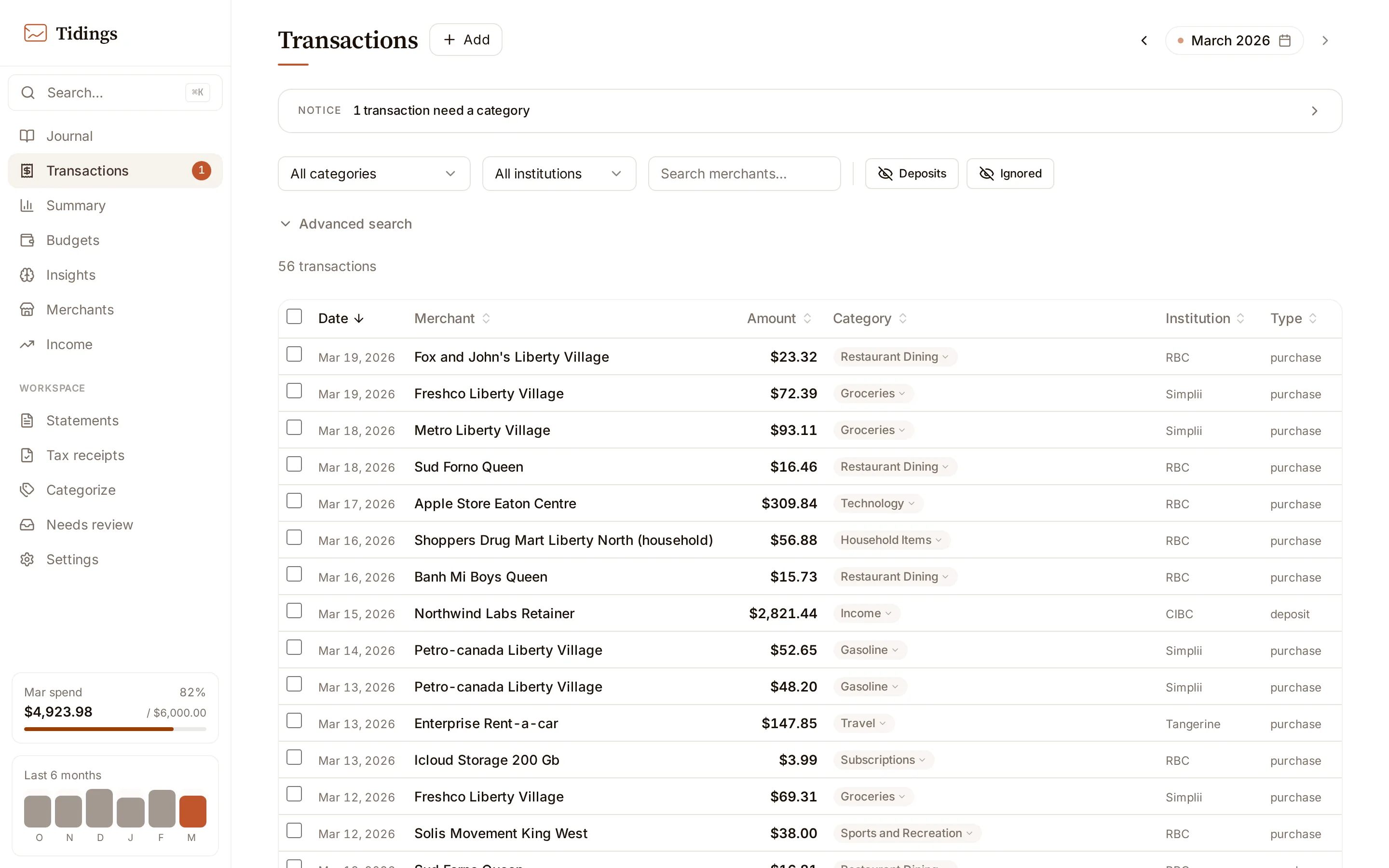
Transactions is the complete ledger. Everything the journal sets aside — refunds, deposits, transfers, zero-amount rows — is here, alongside your spending.
Month view and range search
Section titled “Month view and range search”By default you look at one month, filtered and sorted right in the browser for an immediate response. Pick a date range instead and Tidings switches to a server-backed search across months. That search returns up to roughly a thousand rows; when a range matches more, a notice shows how many you are seeing and you export the full set to CSV.
The attention queue
Section titled “The attention queue”The banner reading “N transactions need a category” is the attention queue: transactions that still need a human decision. A row lands here when it is still Miscellaneous with no one having set it, or when the AI extracted or categorized it and no one has confirmed the result yet.
Confirm marks the category as reviewed without changing it — it clears the row from the queue by agreeing with what is already there.
Changing a category versus changing behavior
Section titled “Changing a category versus changing behavior”Editing a transaction’s category changes that one transaction and nothing else. To change how future transactions from the same merchant are categorized, you make a rule — see categorization. Your manual corrections are also what teach Tidings the rules it suggests, so a careful edit now shapes the suggestions later.
Deleting and the trash
Section titled “Deleting and the trash”Delete is a soft delete. The transaction moves to the trash, drops out of every report and total, and stays there until you decide what to do with it — there is no automatic purge and no retention clock.
- Restore brings a transaction back from the trash into your active ledger.
- Permanent delete removes it for good and cannot be undone.
You browse the trash a month at a time at /transactions/trash.
Receipts to file
Section titled “Receipts to file”A receipt — a photo, an image from the library, or a PDF — can be attached directly from a transaction’s row, or uploaded on its own. Standalone uploads collect under Receipts to file at the top of the page until you file them: filing matches the receipt to the transaction it belongs to, with ranked candidates by date and amount, and parses its contents when receipt-parsing consent is on in settings. Attached receipts also serve as the evidence rows in tax receipts.